How to Move Software to a New Computer in 2026
Moving software to a new computer in 2026 has become much easier because of modern migration tools, cloud storage systems, and advanced operating systems. Whether you are upgrading to a faster laptop, replacing an old desktop, or switching devices for better performance, transferring software correctly helps protect important files, settings, and applications. By using the right methods, users can safely move programs without losing productivity or valuable data.
- What Does Moving Software Mean?
- Why People Move Software to a New Computer
- Things to Check Before Moving Software
- Best Methods to Move Software to a New Computer
- Using PC Migration Software
- Moving Software Using External Storage
- Cloud-Based Software Transfer
- How to Move Software on Windows
- How to Move Software on Mac
- Features Users Need in Software Transfer Tools
- Benefits of Moving Software Properly
- Common Problems During Software Transfer
- Tips for a Smooth Software Transfer
- Best Practices for Safe Software Transfer
- Future of Software Migration in 2026
- FAQs
- Conclusion
- Related Post
Learn how to move software to a new computer in 2026 using migration tools, cloud syncing, backups, and safe transfer methods easily.
What Does Moving Software Mean?
Moving software to a new computer means transferring applications, files, user settings, and licenses from one device to another. This process allows users to continue using their favorite programs without setting everything up again from the beginning.
Some software can be transferred easily, while other applications may require reinstallation and activation on the new device. The transfer process usually depends on the operating system, software type, and licensing policies.
Why People Move Software to a New Computer
There are several common reasons why users transfer software to another device.
Upgrading Hardware
People often purchase newer computers with faster processors, improved graphics cards, and larger storage capacity for better performance.
Replacing an Old Computer
Older systems may become slow, outdated, or unreliable over time, making replacement necessary.
Improving Work Efficiency
Modern computers support advanced applications more efficiently and improve productivity.
Protecting Important Data
Users move software together with files and settings to avoid losing valuable information.
Things to Check Before Moving Software

Check System Requirements
Make sure the new computer supports the software version and hardware requirements before transferring the program.
Save Product Keys
Many applications require activation keys or account logins after installation on a new device.
Back Up Important Files
Always create backups of documents, projects, and software settings to prevent data loss during transfer.
Update Both Computers
Install the latest operating system and driver updates for better compatibility and security.
Verify Internet Connection
A stable internet connection is important for cloud syncing, downloads, and software activation.
Best Methods to Move Software to a New Computer
Different transfer methods work for different situations. Some methods are faster, while others provide better reliability.
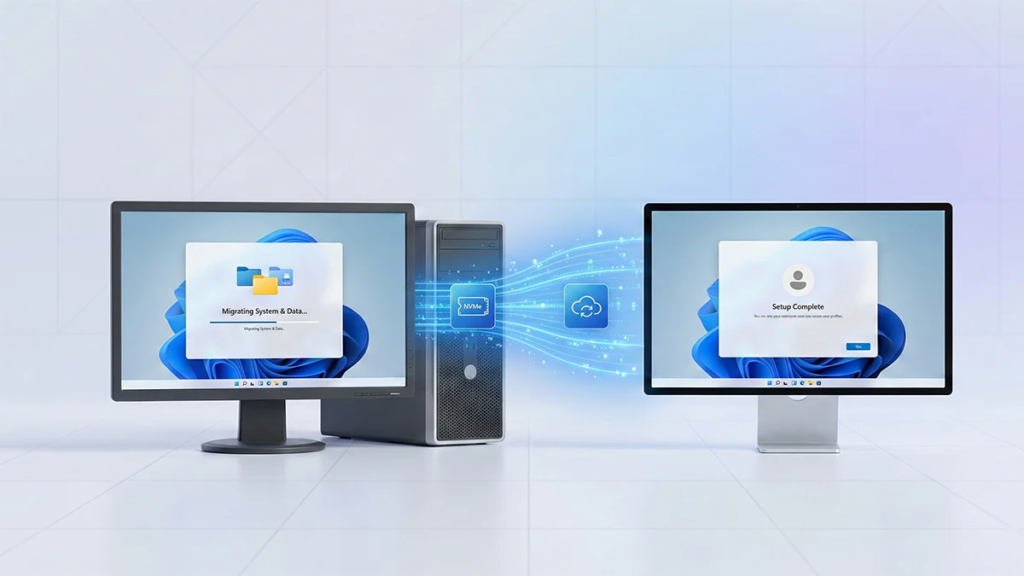
Manual Reinstallation Method
Different software transfer methods work for different situations. Some methods are faster and more convenient, while others provide better reliability and stability. Choosing the right transfer option depends on the software type, operating system, and user needs.
How Manual Installation Works
Users download the official installer from the software provider’s website, install the application on the new computer, and activate it using their account credentials or product key.
Advantages of Manual Installation
- Cleaner installation process
- Fewer compatibility problems
- Better software performance
- Access to updated software versions
Disadvantages of Manual Installation
- Takes more time
- Requires installation files
- Some settings may need manual configuration
Using PC Migration Software
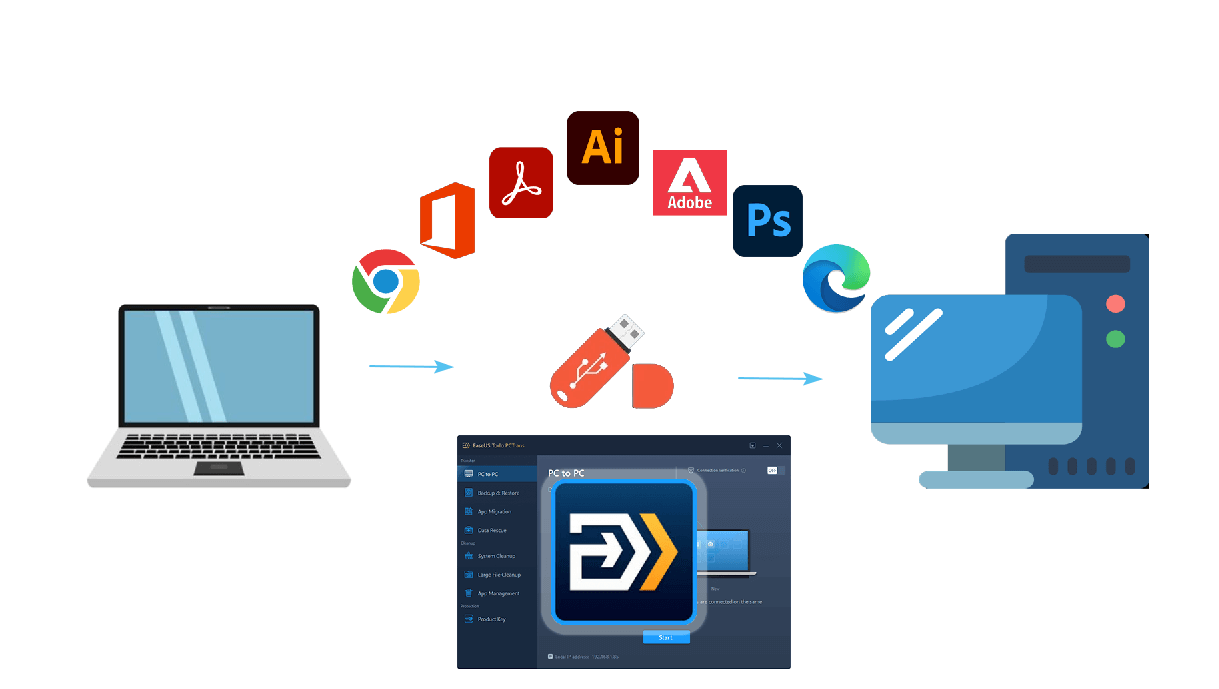
Migration tools help automate the transfer process by moving applications, settings, and files between computers.
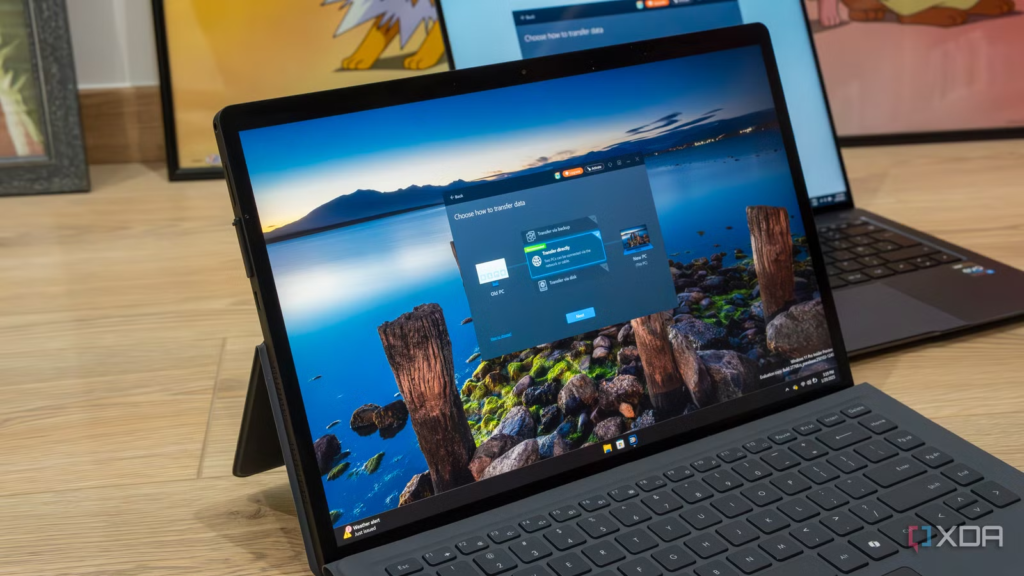
Popular Migration Software
- EaseUS Todo PCTrans
- Laplink PCmover
- Acronis True Image
Features of Migration Software
Automatic File Transfer
Migration tools automatically transfer programs, files, and settings with minimal manual work.
User-Friendly Interface
Most software includes simple step-by-step instructions for beginners.
Fast Data Transfer
Large files and applications can move quickly over networks or external drives.
Backup Protection
Many migration tools create backups before starting the transfer process.
Moving Software Using External Storage
External storage devices are still widely used for software and file transfers.
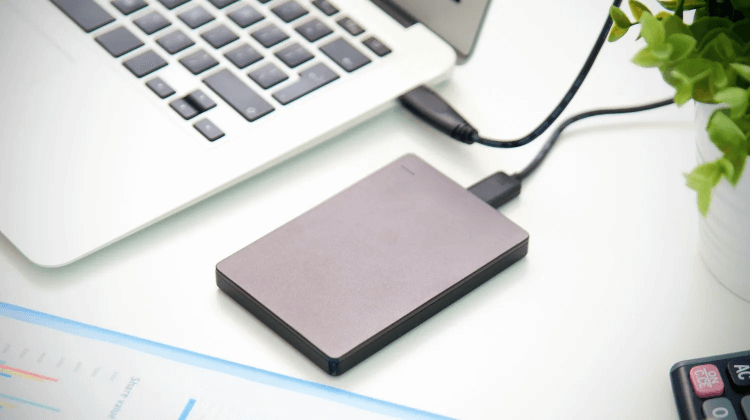
Common External Storage Devices
- USB flash drives
- External hard drives
- SSD storage devices
Benefits of External Storage Transfer
- Easy to use
- No internet connection required
- Suitable for large files
Limitations of External Storage
- Requires manual transfer
- Some software may not work properly without installation
Cloud-Based Software Transfer
Cloud technology has transformed software migration in 2026.
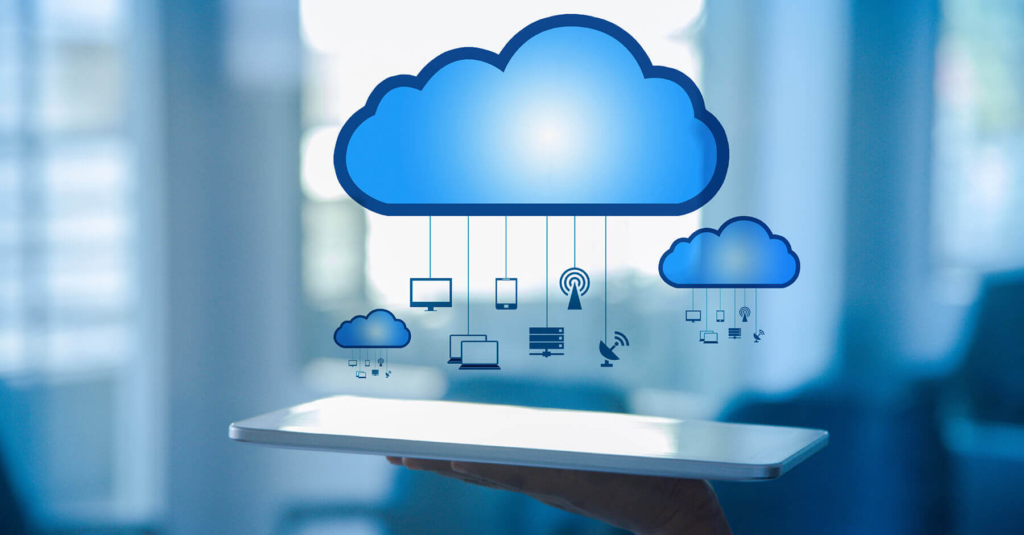
How Cloud Synchronization Works
Users simply sign into the same account on the new computer, and files or settings automatically sync through the cloud.
Popular Cloud Services
- Google Drive
- OneDrive
- Dropbox
Benefits of Cloud Transfer
- Easy file access from anywhere
- Automatic backups
- Faster synchronization
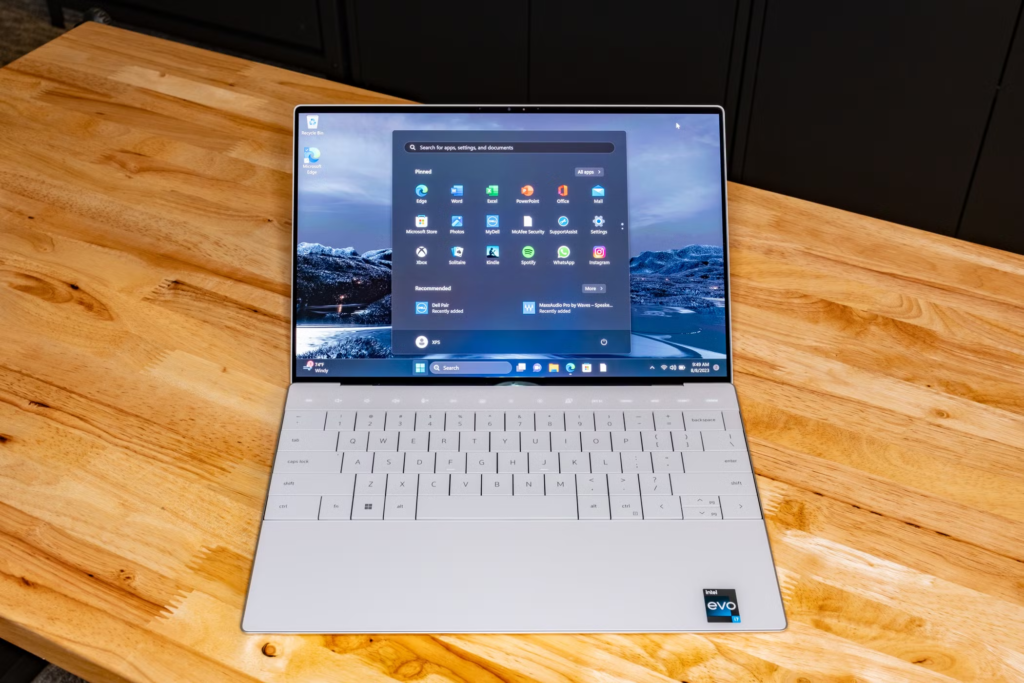
How to Move Software on Windows
Windows users can transfer software using different methods depending on the application type and system requirements. Following a proper step-by-step process ensures a smooth and error-free migration.
Back Up Important Files
Save all important documents, projects, and system files before making any changes to avoid data loss.
Deactivate Licensed Programs
Some applications allow activation on only one computer at a time, so deactivate licenses from the old device if required.
Install Software on the New Computer
Use official installers or trusted migration tools to install the required applications on the new system.
Restore Files and Settings
Transfer saved files and apply previous settings if the software supports backup restoration.
Test the Applications
Open each program and check its functionality to ensure everything is working properly on the new computer.
How to Move Software on Mac
Apple devices include built-in migration features that simplify the transfer process.
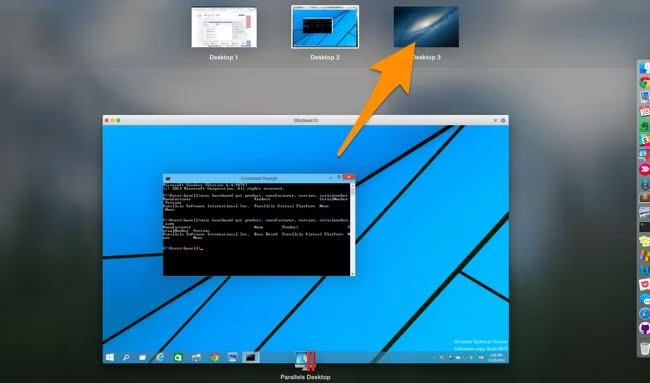
Using Migration Assistant
Mac users can transfer files, applications, and settings directly between devices through Migration Assistant.
Benefits of Migration Assistant
- Automatic transfer process
- Supports applications and user accounts
- Works with wired and wireless connection.
Features Users Need in Software Transfer Tools
Software transfer tools should include several important features to ensure smooth, safe, and efficient migration of applications and data between computers.
- Fast transfer speed for moving large files and applications quickly
- Secure data protection with encryption during transfer
- Compatibility support for different operating systems and software versions
- User-friendly interface for easy operation by beginners
- Backup and recovery options in case of transfer failure
- Reliable performance without data loss or corruption
Benefits of Moving Software Properly
Moving software properly ensures a smooth transition from an old computer to a new one without data loss or performance issues. It helps users continue their work efficiently while keeping applications and settings safe.

Benefits
- Saves time by avoiding full reinstallation of all programs
- Protects important files, settings, and user data
- Improves workflow by allowing quick setup on a new system
- Reduces technical errors and compatibility issues
- Ensures software works smoothly on the new computer
- Minimizes the risk of data loss during transfer
Common Problems During Software Transfer
Moving software to a new computer is not always a smooth process, and users may face several technical issues during transfer. These problems can affect installation, performance, or activation of applications.
Activation Errors
Some software licenses are limited to a single device, so users may face activation issues when installing on a new computer. In such cases, deactivation from the old system may be required.
Missing Files
During transfer, some important files may not move properly, causing software to malfunction or fail to open.
Driver Compatibility Issues
Certain programs depend on hardware drivers, and outdated or missing drivers on the new system can create performance problems.
Corrupted Data
Interrupted transfers or system errors can damage files, leading to corrupted data and software instability.
Tips for a Smooth Software Transfer
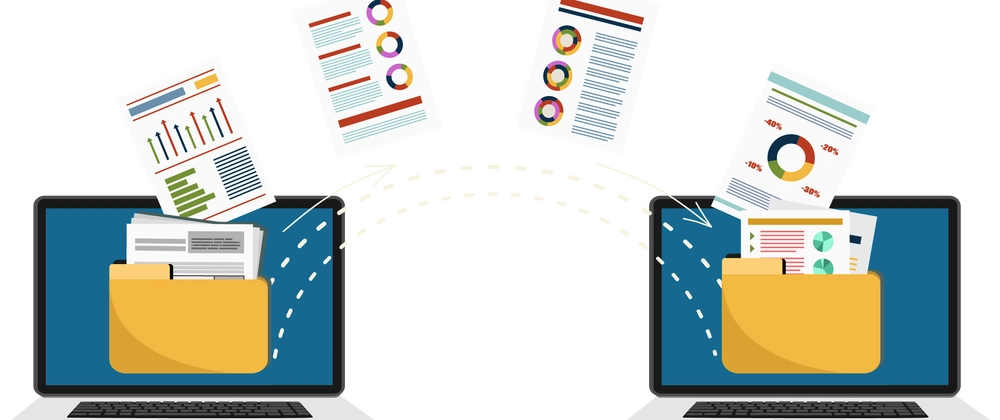
Moving software to a new computer can be easy if proper steps are followed. A well-planned transfer helps avoid errors, data loss, and compatibility issues.
Use Official Sources
Always download software from trusted and official websites to ensure safety and avoid corrupted files.
Keep Backup Copies
Maintain backups of important files and settings until the transfer process is fully completed.
Check Internet Stability
A stable internet connection is important for cloud-based transfers and software downloads.
Organize Files Before Transfer
Remove unnecessary files and organize data to make the transfer process faster and smoother.
Update Drivers and System
Make sure both old and new computers have updated drivers and operating systems for better compatibility.
Best Practices for Safe Software Transfer
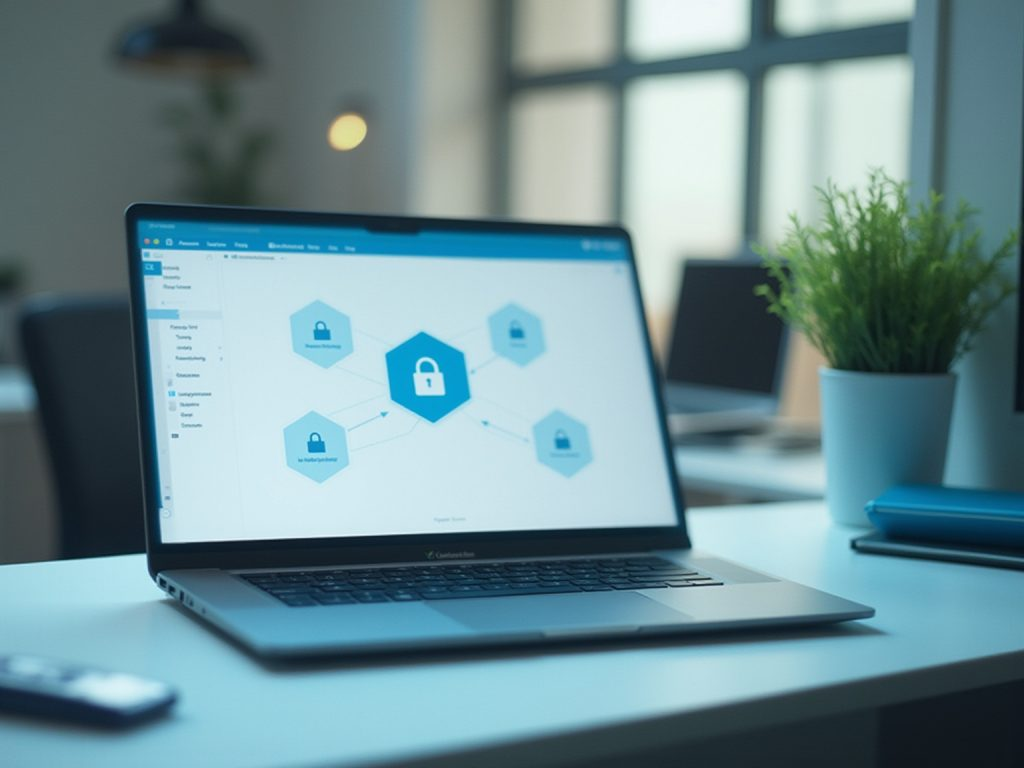
Create Multiple Backups
Using both cloud and offline backups provides better data protection.
Verify Software Licenses
Always check activation policies before moving programs.
Scan Files for Malware
Security scans help protect the new computer from infected files.
Use Reliable Migration Tools
Professional transfer software reduces errors and improves migration success rates.
Future of Software Migration in 2026

Software migration technology is becoming smarter because of artificial intelligence and cloud computing. Modern applications can now sync files, settings, and preferences automatically across multiple devices. In the future, AI-powered migration tools may fully automate installation, activation, and troubleshooting processes without requiring technical knowledge from users. As technology continues to improve, moving software between computers will become faster, safer, and more efficient.
FAQs
1-How do I move software to a new computer?
You can transfer software through manual installation, migration software, cloud syncing, or external storage devices.
2-Can installed programs be transferred directly?
Some applications can transfer directly using migration tools, but many programs still require fresh installation.
3- Is migration software safe to use?
Trusted migration software is generally safe when downloaded from official sources and used correctly with proper security precautions.
4- Do I need product keys after moving software?
Yes, many licensed applications require activation keys or account login details after installing on a new computer.
5- What is the easiest transfer method in 2026?
Cloud synchronization and automated migration software are the easiest and fastest methods for moving software in 2026.
Conclusion
Moving software to a new computer in 2026 is much easier than in previous years because of cloud technology, advanced migration tools, and modern operating systems. Users can transfer applications using manual installation, migration software, cloud syncing, or external storage depending on their needs. Proper planning, backups, and compatibility checks help reduce errors and protect valuable files. By following the correct transfer methods, users can safely move software and continue working smoothly on their new computer.