Dolby Software Component Install Error – Complete Fix Guide
The Dolby Software Component Install Error is a common Windows problem that appears when Dolby audio drivers or software fail to install correctly. This issue can affect sound quality, disable Dolby Atmos, or stop audio enhancements from working properly. Many users experience this error after Windows updates, driver conflicts, or corrupted installation files. Understanding the causes and solutions of this problem helps users restore normal audio performance and prevent future installation issues on their computers.
Fix the Dolby Software Component Install Error with simple solutions like updating audio drivers, repairing system files, and restoring Dolby Atmos features.
- What Is Dolby Software Component Install Error?
- Common Causes of Dolby Software Component Install Error
- Symptoms of Dolby Software Component Install Error
- Types of Dolby Software Component Install Errors
- How to Fix Dolby Software Component Install Error
- Restart the Computer
- Steps
- Update Windows
- Reinstall Audio Drivers
- Run Windows Audio Troubleshooter
- Enable Audio Services
- Repair Corrupted System Files
- Disable Antivirus Temporarily
- Perform a Clean Boot
- Remove Old Dolby Software Completely
- Reinstall Dolby Access Application
- Check Hardware Compatibility
- Benefits of Fixing Dolby Software Component Install Error
- Features of Dolby Audio Software
- Best Practices to Avoid Dolby Installation Errors
- Why Dolby Audio Is Important
- Frequently Asked Questions
- Conclusion
- Related Post
What Is Dolby Software Component Install Error?
The Dolby Software Component Install Error occurs when the system cannot properly install or update Dolby audio software. This error mainly affects Windows devices using Dolby technologies for enhanced sound performance.
When the problem appears, users may notice:
- Missing Dolby Atmos settings
- Poor audio quality
- Distorted sound
- Audio enhancement failures
- No sound output
- Dolby application crashes
This issue may happen during a Windows update, driver installation, or software upgrade.
Common Causes of Dolby Software Component Install Error
Several factors can cause this installation problem.
Outdated Audio Drivers
Old audio drivers may not support the latest Dolby software version, leading to installation failures and compatibility problems.
Corrupted Installation Files
Damaged setup files can interrupt the installation process and prevent Dolby components from installing correctly.
Windows Update Conflicts
Some Windows updates may replace audio drivers or create compatibility issues with Dolby software.
Driver Conflicts
Conflicts between Realtek, Intel, or third-party audio drivers can stop Dolby software from working properly.
Disabled Audio Services
Important audio services running in the background may be disabled or malfunctioning.
Corrupted System Files
Damaged Windows system files can interfere with Dolby installation and audio functionality.
Antivirus Restrictions
Security software may mistakenly block Dolby installation files during setup.
Symptoms of Dolby Software Component Install Error
Users may experience several warning signs when this problem occurs.
Common Symptoms
- Dolby Atmos not working
- Missing sound enhancement options
- Crackling or distorted audio
- No sound from speakers or headphones
- Installation error messages
- Dolby application not opening
- Audio driver update failures
- Poor gaming or streaming sound quality
Types of Dolby Software Component Install Errors
Different systems may experience different Dolby installation issues.
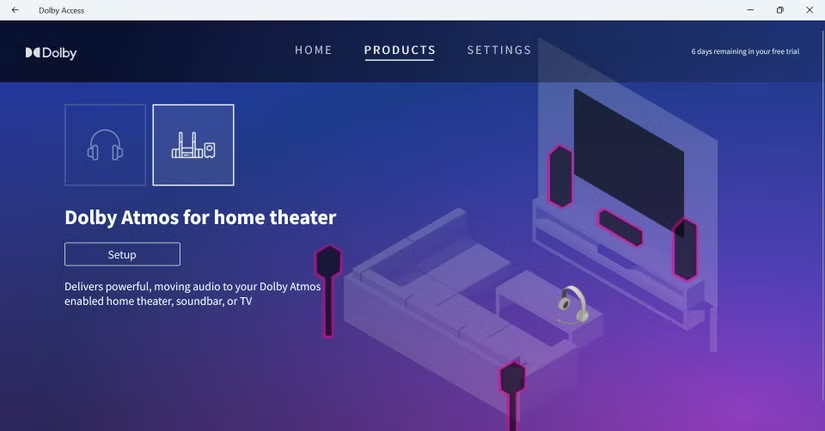
Driver Installation Error
Windows cannot install the required Dolby audio driver successfully.
Dolby Atmos Installation Failure
The system fails to activate or install Dolby Atmos support correctly.
Software Update Error
A Windows or Dolby update interrupts audio functionality.
Missing Component Error
Some required Dolby files or services may be missing from the computer.
Compatibility Error
Older devices or unsupported operating systems may not support the latest Dolby version.
How to Fix Dolby Software Component Install Error
Several troubleshooting methods can help solve this issue.
Restart the Computer
A simple restart refreshes system processes and removes temporary glitches affecting the installation.
Steps
- Save all open work
- Open the Start Menu
- Select Restart
- Wait for the system to reboot
- Try installing Dolby software again
Update Windows
Keeping Windows updated improves compatibility and fixes audio-related bugs.
Steps to Update Windows
- Open Settings
- Go to Windows Update
- Click Check for Updates
- Install all available updates
- Restart the computer
Updated system files often solve Dolby installation problems automatically.
Reinstall Audio Drivers
Reinstalling drivers can repair corrupted audio configurations.
Steps to Reinstall Drivers
- Open Device Manager
- Expand Sound, Video and Game Controllers
- Right-click the audio driver
- Select Uninstall Device
- Restart the computer
- Install the latest audio driver
This process refreshes the audio system and restores compatibility.
Run Windows Audio Troubleshooter
Windows includes built-in tools for fixing sound problems automatically.
Steps
- Open Settings
- Go to System
- Select Troubleshoot
- Click Other Troubleshooters
- Run the Audio Troubleshooter
The tool scans and repairs common audio issues.
Enable Audio Services
Certain background services are required for Dolby software to work correctly.
Important Services
- Windows Audio
- Windows Audio Endpoint Builder
- Dolby Audio Service
Steps to Enable Services
- Press Windows + R
- Type services.msc
- Press Enter
- Locate audio services
- Set Startup Type to Automatic
- Restart the services
Repair Corrupted System Files
Damaged Windows files can interfere with Dolby installation.
Use System File Checker
Open Command Prompt as Administrator and scan for corrupted system files.
This process repairs damaged files automatically and improves system stability.
Use DISM Tool
If system corruption continues, use the DISM repair tool to restore Windows image files and fix installation issues.
Disable Antivirus Temporarily
Some antivirus programs mistakenly block Dolby setup files.
Safe Method
- Disable antivirus temporarily
- Install Dolby software
- Re-enable antivirus after installation
Only use trusted installation files before disabling security software.
Perform a Clean Boot
A clean boot prevents unnecessary applications from interfering with installation.
Steps
- Press Windows + R
- Type msconfig
- Open System Configuration
- Disable unnecessary startup services
- Restart the computer
- Install Dolby software again
Remove Old Dolby Software Completely
Leftover files from older installations may create software conflicts.
Removal Process
- Uninstall previous Dolby software
- Delete temporary setup files
- Restart the computer
- Install the latest Dolby version
A clean installation often resolves recurring problems.
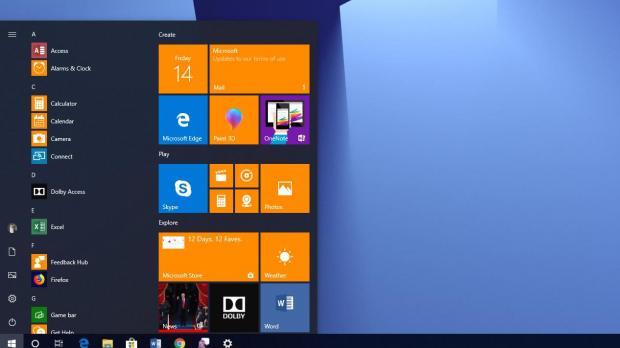
Reinstall Dolby Access Application
Some devices require the Dolby Access application for proper functionality.
Steps
- Open Microsoft Store
- Search for Dolby Access
- Uninstall the application
- Restart the computer
- Install it again
This process refreshes Dolby settings and restores missing features.
Check Hardware Compatibility
Some devices may not fully support advanced Dolby technologies.
Compatibility Factors
- Supported audio chipset
- Compatible Windows version
- Updated BIOS
- Dolby-supported speakers or headphones
Always confirm hardware compatibility before installing advanced audio software.
Benefits of Fixing Dolby Software Component Install Error
Resolving this issue improves overall audio performance.
Key Benefits
- Better audio quality
- Improved gaming experience
- Stable sound performance
- Access to Dolby Atmos
- Enhanced movie and streaming sound
- Clearer voice communication
- Reduced driver crashes
- Better surround sound effects
Features of Dolby Audio Software
Dolby technology includes several advanced sound enhancement features.
Main Features
- Surround sound support
- Noise reduction technology
- Enhanced bass performance
- Voice clarity improvements
- Audio customization settings
- Dolby Atmos compatibility
- Automatic sound optimization
- Better cinematic sound experience
These features improve music, movies, gaming, and communication audio quality.
Best Practices to Avoid Dolby Installation Errors
Following proper maintenance steps can reduce future installation problems.
Keep Drivers Updated
Install the latest audio drivers regularly to maintain compatibility.
Use Official Software
Always download Dolby software from trusted and official sources.
Avoid Forced Shutdowns
Unexpected shutdowns may corrupt installation files and system components.
Create Restore Points
Restore points help recover the system after failed updates or installations.
Scan for Malware
Malware infections can damage important audio files and services.
Remove Unused Audio Applications
Multiple sound enhancement tools may create driver conflicts.
Why Dolby Audio Is Important
Dolby audio technology improves the listening experience by creating richer and more immersive sound. It enhances movies, games, music, and online communication with clearer voices, stronger bass, and balanced sound effects.
Many modern laptops and desktops rely on Dolby software for premium sound quality. Without Dolby functionality, audio performance may feel weak or unbalanced during entertainment activities.
Frequently Asked Questions
1.What causes Dolby Software Component Install Error?
This error usually happens because of outdated drivers, corrupted installation files, Windows update conflicts, or missing audio services on the computer.
2.Can outdated drivers create Dolby installation problems?
Yes, outdated or corrupted audio drivers often prevent Dolby software from installing properly and may disable important sound enhancement features.
3.Is Dolby Access necessary for Dolby Atmos?
Many devices require the Dolby Access application to activate Dolby Atmos features and manage advanced audio settings correctly.
4.Does Windows Update affect Dolby software installation?
Some Windows updates can replace audio drivers or create compatibility conflicts that interfere with Dolby software installation and sound functionality.
5.Can antivirus software block Dolby installation files?
Yes, certain antivirus programs may mistakenly block Dolby setup files, causing installation failures or preventing audio components from installing correctly.
Conclusion
The Dolby Software Component Install Error can affect sound quality and disable important audio features on Windows computers. Most issues can be fixed by updating drivers, repairing system files, reinstalling Dolby software, and enabling audio services. Regular maintenance and trusted software downloads help prevent future problems and improve overall audio performance and system stability.