Can I Delete Software Distribution Folder- Complete Windows Guide (2026)
Many Windows users notice that their system storage suddenly becomes full without understanding the exact reason. One common cause is the Software Distribution folder. This folder is created by Microsoft Windows to store temporary update files, installation data, and cached components required for Windows updates. Over time, the folder can grow very large and may create update-related issues.A lot of users search online asking whether it is safe to remove this folder and what happens after deleting it. The good news is that in most cases, deleting the Software Distribution folder is completely safe when done correctly.
- What Is the Software Distribution Folder?
- Why Does the Software Distribution Folder Become Large?
- Is It Safe to Delete the Software Distribution Folder?
- Common Problems Fixed by Deleting the Folder
- How to Delete the Software Distribution Folder Properly
- What Happens After Deleting the Folder?
- Difference Between Deleting Folder Contents and Entire Folder
- Can Deleting the Folder Improve Performance?
- When Should You Avoid Deleting the Folder?
- Alternative Ways to Clean Windows Update Files
- Does Windows 11 Use the Same Folder?
- FAQS
- Conclusion
- Related Post
Windows automatically recreates the folder whenever new updates are downloaded.Understanding the purpose of this folder is important before removing it. Deleting the wrong system files can sometimes affect Windows performance, so users should always know the proper method. This guide explains everything in simple language, including what the Software Distribution folder does, why it becomes large, when you should delete it, and the safest way to remove it from your computer.
Windows 11 uses Software Distribution folder for updates, storing temporary files, cache data, and installation packages for smooth updates.
What Is the Software Distribution Folder?
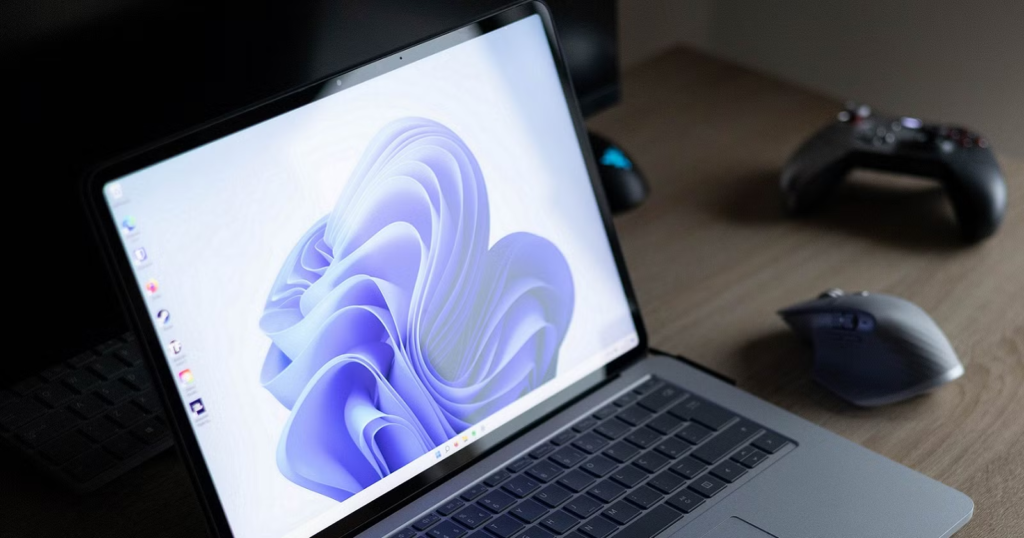
The Software Distribution folder is a built-in Windows folder used by the Windows Update service to store temporary update files, installation packages, cached data, and update history information. It helps Windows manage and install system updates properly. The folder is usually located inside the Windows directory on the system drive. Over time, it can grow large because Windows continuously stores downloaded update files and temporary installation data there.
Why Does the Software Distribution Folder Become Large?
The Software Distribution folder can become large over time because Windows continuously stores update-related files and temporary data. Common reasons include:
- Old Windows update files remain stored
- Failed updates create duplicate files
- Temporary installation data accumulates
- Cached update files are not removed automatically
- Windows stores update history information
- Multiple feature updates increase folder size
- Corrupted update files remain in the cache
This format improves readability and SEO while making the content easier for users to understand.
Is It Safe to Delete the Software Distribution Folder?

es, it is generally safe to delete the Software Distribution folder because it mainly contains temporary Windows Update files and cached data. Windows automatically recreates the folder whenever new updates are downloaded. Deleting its contents can help fix update errors, corrupted cache issues, and storage problems. However, users should avoid deleting the folder while updates are actively installed on the system.
Common Problems Fixed by Deleting the Folder
Removing the Software Distribution folder can help solve many common Windows Update issues. Corrupted update cache files are often responsible for installation failures and repeated update errors.
Users frequently delete the folder to fix problems such as:
- Windows updates stuck at certain percentages
- Failed update installations
- Slow update checking process
- Windows Update error codes
- Repeated update download attempts
- Storage space problems
- Corrupted update cache
After clearing the folder, Windows downloads fresh update files from Microsoft servers, which often resolves these issues automatically.
How to Delete the Software Distribution Folder Properly
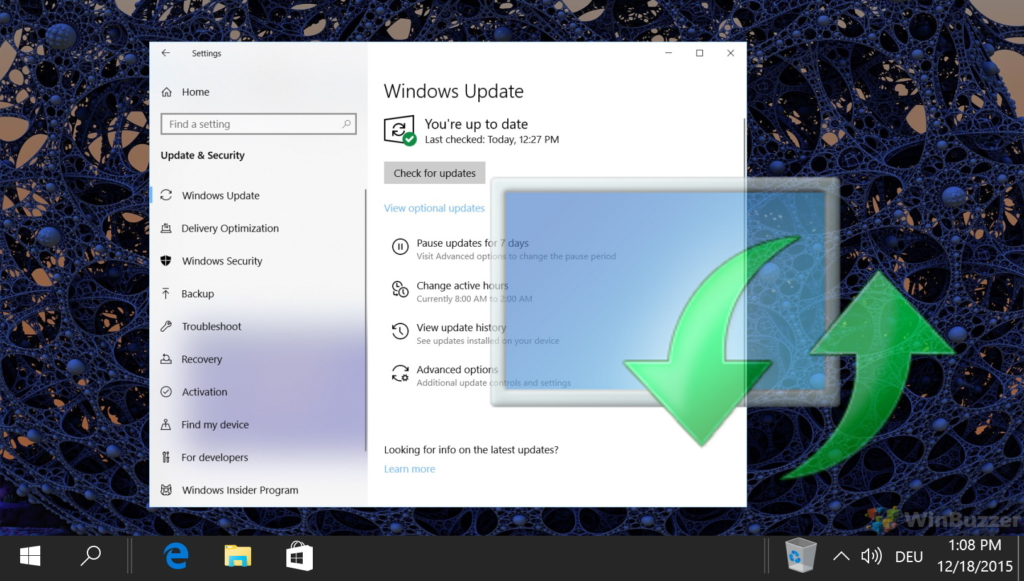
Stop Windows Update Services
Before deleting the folder, users should stop Windows Update services because the files are actively used by the system during updates.
Open the Software Distribution Folder
Go to the Windows installation drive and open the SoftwareDistribution folder located inside the Windows directory.
Delete Folder Contents
Select all files and temporary folders inside the SoftwareDistribution directory and remove them from the system safely.
Restart Windows Update Services
After deleting the files, restart Windows Update services so Windows can create fresh update cache files automatically.
What Happens After Deleting the Folder?
After deleting the Software Distribution folder, Windows automatically creates a new clean folder during the next update process. The system downloads fresh update files again, which can help fix corrupted cache problems and update errors.
- Windows Update cache is reset
- Update files download again
- Some storage space becomes free
- Update history may temporarily disappear
- Windows Update may work more smoothly afterward
Difference Between Deleting Folder Contents and Entire Folder
- Deleting folder contents removes temporary update files while keeping the main folder structure intact
- Deleting the entire folder removes everything, including the folder itself
- Windows automatically recreates the folder after deletion
- Removing only contents is considered the safer and more common method
- Both methods help clear corrupted Windows Update cache files
- Deleting the full folder may sometimes cause temporary permission warnings until Windows recreates it
Can Deleting the Folder Improve Performance?

Deleting the Software Distribution folder does not directly increase overall system performance like upgrading hardware or removing startup programs. However, it can improve Windows Update performance by clearing corrupted cache files and fixing update-related issues. In some cases, users may notice smoother update processing, faster installation of updates, and reduced storage usage, especially when the folder has grown large over time.
When Should You Avoid Deleting the Folder?

During Active Windows Updates
Do not delete the folder while Windows updates are currently downloading, installing, or restarting, as it may interrupt the update process and cause errors.
While System Upgrade Is Running
Avoid deletion during major Windows upgrades because the system relies on these files to complete installation safely.
When Critical Security Patches Are Installing
If important security updates are being installed, stopping or deleting update files may affect system stability and protection.
When System Is Restarting for Updates
Do not interfere with the folder while the system is restarting to apply updates, as it may lead to incomplete installation or update failure.
Alternative Ways to Clean Windows Update Files
Besides manually deleting the Software Distribution folder, Windows also includes built-in cleanup tools.
Disk Cleanup Tool
Windows Disk Cleanup can remove old update files safely without manual folder deletion. Users can select “Windows Update Cleanup” to free storage space.
Storage Sense
Modern versions of Windows include Storage Sense, which automatically removes temporary files and unnecessary cache data.
Windows Troubleshooter
Windows Troubleshooter is a built-in tool in Windows that automatically detects and fixes common system problems like update errors, network issues, and performance glitches.
Does Windows 11 Use the Same Folder?
Yes, Windows 11 uses the same Software Distribution folder as Windows 10 for managing Windows Update files. It performs the same function by storing temporary update data, cache files, and installation packages. The folder location and behavior remain almost identical, and users can safely clear it in Windows 11 using the same steps to fix update issues or free storage space.
FAQS
1-Can I safely delete the Software Distribution folder?
Yes, deleting the Software Distribution folder is generally safe because Windows automatically recreates it when downloading new updates and temporary files again.
2-What happens after deleting the Software Distribution folder?
After deletion, Windows creates a fresh folder automatically, clears corrupted update cache, and downloads updates again from Microsoft update servers normally.
3-Will delete the Software Distribution folder free storage space?
Yes, removing old update files inside the Software Distribution folder can free significant storage space, especially on systems with limited SSD capacity.
4-Does deleting the folder fix Windows Update errors?
Yes, deleting corrupted update cache files often fixes common Windows Update issues including failed installations, stuck downloads, and repeated update errors.
5-Can I delete the Software Distribution folder in Windows 11?
Yes, Windows 11 uses the same Software Distribution folder system, and deleting it safely clears update cache and temporary installation files.
Conclusion
The Software Distribution folder stores temporary Windows Update files that may become corrupted or consume excessive storage space over time. Deleting the folder contents is usually safe and helps resolve update errors, failed installations, and storage problems. Windows automatically recreates the folder whenever updates are downloaded again. Following the correct cleanup steps ensures smooth system performance without damaging important operating system files.