Samsung J7 Software Update Guide- Complete Method, Features & Fixes
Samsung J7 users often face issues regarding software updates, performance lag, and security patches. This guide explains the complete process of updating Samsung J7 software safely and correctly. You will learn methods for manual updates and automatic updates, benefits of upgrading, common errors, and solutions. Whether your device is running slow or you want new features, this article will help you improve performance, security, and stability with the latest available software version.
learn how to update manually and automatically, fix errors, improve performance, security, battery life, and get latest features easily.
- Samsung J7 Software Update Overview
- How to Check Software Update on Samsung J7
- How to Update Samsung J7 Software Manually
- Benefits of Samsung J7 Software Update
- Features After Software Update
- Common Issues During Update & Solutions
- Types of Samsung J7 Updates
- Why Samsung J7 Updates Are Important
- Tips Before Updating Samsung J7
- FAQ’s
- Conclusion
- Related post
Samsung J7 Software Update Overview
Samsung Galaxy J7 is an older but still widely used smartphone in many regions. It was popular due to its strong battery life and stable performance. Over time, software updates become essential to maintain smooth functioning and security.
Software updates improve system performance, fix bugs, and enhance device security. However, since Samsung J7 is an older model, updates are limited and mostly depend on region and carrier support. Most users now receive only security patches instead of major Android upgrades.
In simple words, updates help your phone stay usable, secure, and compatible with modern apps.
How to Check Software Update on Samsung J7
Checking for updates is very simple and can be done directly from your phone settings. First, open Settings on your device. Then scroll down and tap on About Device. After that, select Software Update and click on Check for Updates.
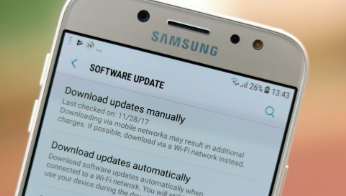
If an update is available, your phone will show a download option. You can download and install it directly.
It is recommended to use a stable Wi-Fi connection, ensure your battery is above 50%, and keep enough storage space available to avoid interruption during installation.
How to Update Samsung J7 Software Manually
Sometimes automatic updates are not available, so you may need to update your phone manually using different methods.
One simple method is through Settings. Just go to Software Update and install if available. This is the safest and easiest option for most users.
Another method is using Samsung Smart Switch on a PC. You simply install the software, connect your phone via USB cable, and check for updates. This method is useful when updates do not appear on the phone directly.
For advanced users, firmware can be installed using Odin tool. This method allows manual flashing of official firmware.
However, it is risky and should only be done carefully because incorrect steps can damage the device.
Benefits of Samsung J7 Software Update
Updating your Samsung J7 provides many important advantages that improve overall user experience.
One major benefit is improved performance speed. The phone becomes smoother, and apps load faster. Another benefit is reduced system lag, which helps in multitasking.
Security is another key factor. Updates install the latest security patches that protect your data from malware and hacking attempts.
Battery performance also improves after updates because system optimization reduces unnecessary background activity, resulting in better battery life.
In addition, software updates fix bugs, improve app compatibility, and make the device more stable for daily use.
Features After Software Update
After updating your Samsung J7, you may notice several improvements in system behavior and usability.
The system becomes more stable with better Android optimization. Notifications work more smoothly, and the interface feels more responsive.
Performance-wise, apps open faster, switching between apps becomes smoother, and overheating issues are reduced.
Connectivity also improves after updates. You get stronger Wi-Fi signals, better mobile network stability, and faster Bluetooth pairing.
Battery management is also improved, with optimized power usage and reduced background drain, helping your phone last longer throughout the day.
Common Issues During Update & Solutions
Sometimes users face issues during the update process, but most problems can be easily fixed.
If the update does not appear, restart your device and try again. Also check your internet connection and storage space.
If your storage is full, delete unnecessary files or move data to an SD card. This will allow the update to download properly.
If the update gets stuck during installation, restart your phone or boot into recovery mode and retry.
In some cases, the phone may feel slow after updating. This usually happens due to cached data. Clearing the cache partition or restarting the device fixes the issue.
Types of Samsung J7 Updates
Samsung provides different types of updates for the device depending on need and availability.
Security updates protect your phone from viruses and online threats.
System updates improve overall performance and stability.
Patch updates fix small bugs and errors.
Firmware updates upgrade system software for better compatibility.
Each update plays an important role in keeping your phone safe and efficient.
Why Samsung J7 Updates Are Important
Software updates are very important for maintaining a smooth smartphone experience.
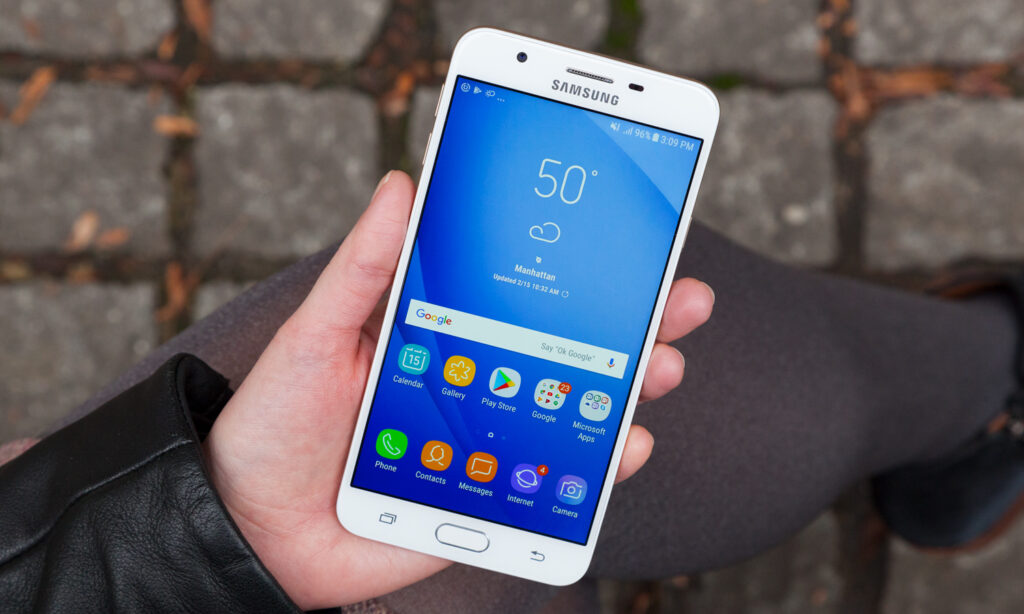
Without updates, your phone becomes vulnerable to security risks, app crashes, and performance issues. Updated systems work better with modern apps and ensure smooth functionality.
Updates also help extend the life of your device by improving stability and fixing hidden system problems. That is why keeping your Samsung J7 updated is always recommended.
Tips Before Updating Samsung J7
Before installing any update, it is important to prepare your phone properly.
Always take a complete backup of your data including contacts, photos, and important files. Ensure your battery is fully charged or at least above 50%.
Use a stable internet connection, preferably Wi-Fi, to avoid interruption. Also make sure your phone has enough free storage space before starting the update process.
Avoid turning off your device during installation because it can cause system errors.
FAQ’s
1.How can I update Samsung J7 software?
You can update your Samsung J7 by going to Settings > Software Update > Check for Updates. If available, download and install using a stable internet connection and sufficient battery.
2.Why is my Samsung J7 not updating?
Your device may not update due to lack of official support, low storage space, outdated firmware, or region-based restrictions from Samsung servers.
3.Is Samsung J7 still getting updates?
Most Samsung J7 models only receive limited security patches because Samsung has stopped major Android version updates for this older device.
4.Can I manually install updates on Samsung J7?
Yes, you can use the Samsung Smart Switch or Odin tool to manually install firmware updates, but it requires technical knowledge and careful steps.
5.Is updating Samsung J7 safe or not?
Yes, updating Samsung J7 is safe if done through official settings or Smart Switch, with proper backup, stable internet, and sufficient battery during installation.
Conclusion
Samsung J7 software updates are essential for improving security, performance, and overall system stability. Even though updates are limited for older devices, proper installation and maintenance can significantly enhance user experience. Keeping your device updated ensures smoother performance, better protection, and longer lifespan, making it reliable for daily use despite being an older smartphone.